Script Versioning & Packaging
Why Script Versions Matter
In Nodlin, a node’s state is the product of three things:
- Its own data — the properties and values stored on the node.
- Its related nodes — the network of connected nodes that inform its behaviour.
- The specific script logic that was applied — the code that ran when the node was created or last updated.
Because scripts evolve over time, it is essential to retain the exact version of the script that was used for every node. Without this, a node’s state could become unexplainable — you would not be able to reproduce how it arrived at its current values or understand the logic behind its relationships.
Every time a script is saved, Nodlin creates a new immutable version with a unique identifier. The previous version is preserved unchanged. Nodes continue to reference the specific script version they were created with, and that version remains available as long as any node depends on it.
The node reference count (displayed in both the Script Versions panel and the Script Search panel) shows how many nodes currently use each script version. This makes it immediately clear which versions are still in active use and which are candidates for cleanup.
Script Versions & Branches
The Version Chain
Every save of a script produces a new record with a unique Script ID. This new version is linked to its
predecessor via a new_version edge, forming a version chain — a linear history of how the script
evolved over time.
v1 → v2 → v3 → v4 (latest)
Each version in the chain is independent and immutable. Nodes that reference v2 continue to use v2
even after v3 and v4 are created.
Branches
A branch occurs when two or more saves are made from the same predecessor version. This creates a fork in the version chain, similar to branches in a version control system like Git.
v1  →  v2  →  v3  →  v4 (branch A)
              ↘
               v5  →  v6 (branch B)
This can happen when:
- A developer saves a modified copy of a script that another developer has also modified.
- A script is edited from an older version rather than the latest.
The Branches column in the Script Search panel and the branch icon tooltip in the Script Versions panel indicate how many later versions diverge from a given point. This helps you identify when a script lineage has forked and whether consolidation is needed.
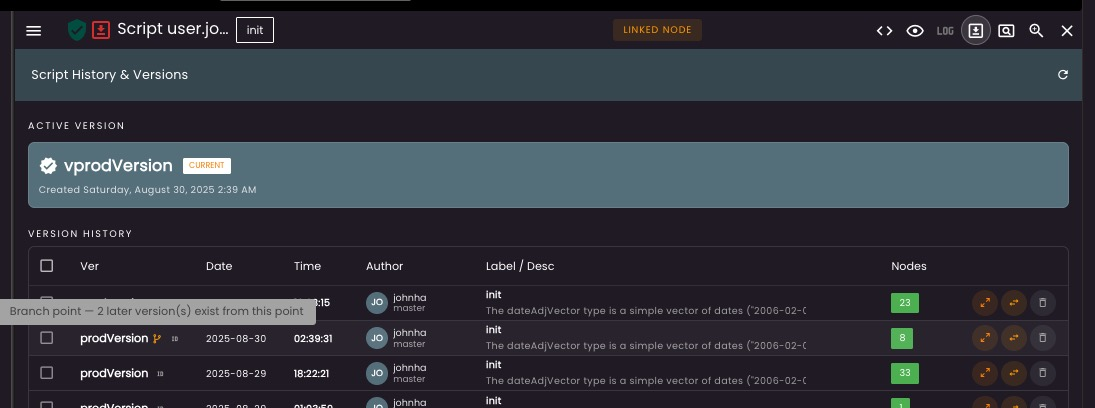
The tooltip on the branch icon shows the count of later versions that exist from that point, helping you trace where the version history diverged.
The Fully Qualified Name (FQN) & User Preferences
FQN Structure
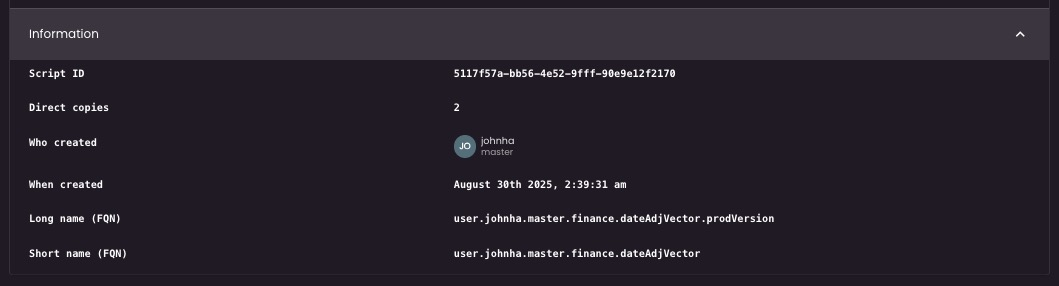
Every script in Nodlin has a Fully Qualified Name that uniquely identifies its lineage. The format is:
ownerType.owner.domain.package.name.version
For example: user.johnha.master.finance.dateAdjVector.prodVersion
The FQN encodes who created the script, which domain and package it belongs to, and the version label. This ensures that scripts are unambiguous even when multiple users or domains are involved.
User Preferences
User preferences are recorded against the FQN (specifically the short FQN, which excludes the version-specific Script ID). When a user sets a preference for a script, they are saying: “for nodes of this type, use the script lineage identified by this FQN.”
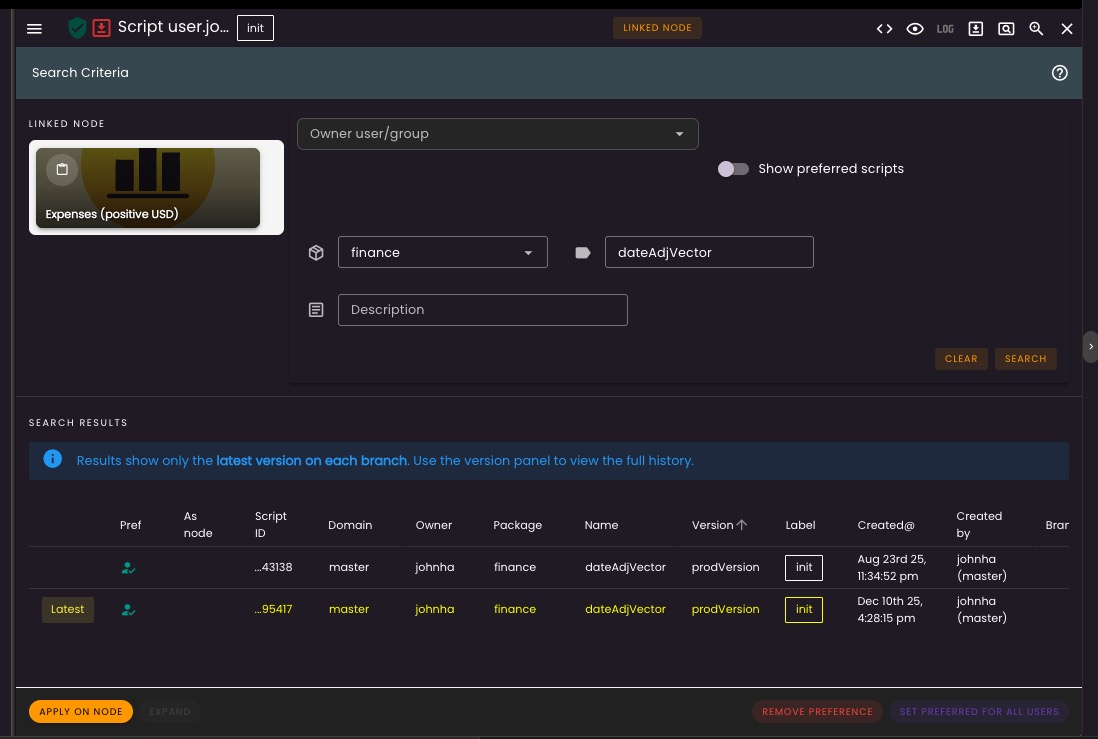
When a new node is created, Nodlin automatically selects the latest script (by creation date) matching the preferred FQN. This means:
- New nodes always use the most recent version of the preferred script — no manual intervention needed.
- If a newer version is saved, the next node created will use it automatically.
- Different users can have different preferences for the same node type, allowing experimentation without affecting others.
The “Latest” indicator in the Script Search panel highlights which version is the current tip of each branch. The action buttons at the bottom of the search panel provide quick access to:
- Apply on Node — set the selected script as the active script for the current node.
- Remove Preference — clear your preference for this script’s FQN.
- Set Preferred for All Users — (admin only) set this script as the default for all users in the domain.
Packages — Grouping Related Scripts
A package is a named collection of related scripts. Scripts within a package are conceptually linked — they typically define node types that work together and reference each other.
For example, an incident management package might contain:
incident— the top-level incident nodeinvestigation— a breakout investigation related to the incidentimpact— a record of business impact
These scripts reference each other’s FQNs to create relationships (e.g. the incident script uses
linkToNewNode with the investigation FQN) and query related nodes for aggregated status.
Packages Are Not Hard Boundaries
While packages group related scripts, any script can reference the FQN of nodes in any other
package. A script in the finance package can create nodes defined in the okr package, or query
related nodes from incident. Packages are an organisational convenience — like modules in a
codebase that group related logic, but can import from other modules freely.
This design means:
- You can build cross-cutting workflows that span multiple packages.
- A single node can relate to nodes from many different packages.
- Package boundaries encourage cohesion but do not enforce isolation.
Setting Up a GitHub Repository
Scripts can be stored in a GitHub repository for version control, sharing, and installation across Nodlin domains. The repository is structured so that each package lives in its own directory.
Repository Structure
my-nodlin-scripts/
  causeEffect/
    nodlinpackage.json
    causeEffect.star
  okr/
    nodlinpackage.json
    okrObjective.star
    keyResult.star
    okrSet.star
  incident/
    nodlinpackage.json
    incident.star
    investigation.star
    impact.star
Each package directory contains a nodlinpackage.json manifest that describes the package and lists
its scripts.
The nodlinpackage.json Manifest
{
  "name": "causeEffect",
  "description": "Cause effect analysis diagram.",
  "domain": "master",
  "author": "johnha",
  "version": "1.0.0",
  "scripts": [
    {
      "name": "causeEffect",
      "file": "causeEffect.star",
      "description": "Cause effect diagram."
    }
  ]
}
Fields:
- name — the package name (must be alphanumeric, underscores, or hyphens).
- description — a human-readable summary of what the package provides.
- domain — the Nodlin domain this package targets.
- author — the author’s user ID.
- version — a version string (e.g. semver).
- scripts — an array of script definitions, each with a
name,file(relative path to the.starfile), anddescription.
Adding a Repository in Nodlin
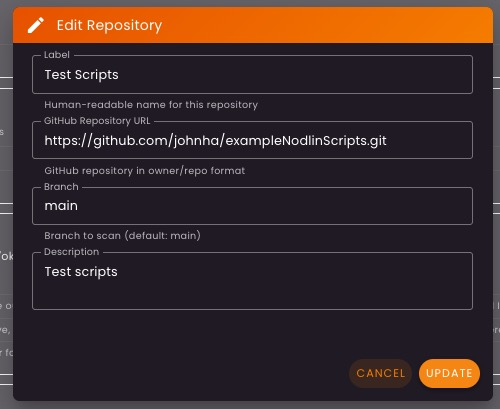
From the admin panel, navigate to Script Repositories and click Add Repository. You will need to provide:
- Label — a human-readable name for the repository.
- GitHub Repository URL — in
owner/repoformat (e.g.https://github.com/johnha/exampleNodlinScripts.git). - Branch — the branch to scan (defaults to
main). - Description — an optional description.
Once added, click Scan to discover all packages in the repository. Nodlin will traverse the
repository tree, locate every nodlinpackage.json, and present the discovered packages with their
scripts listed.
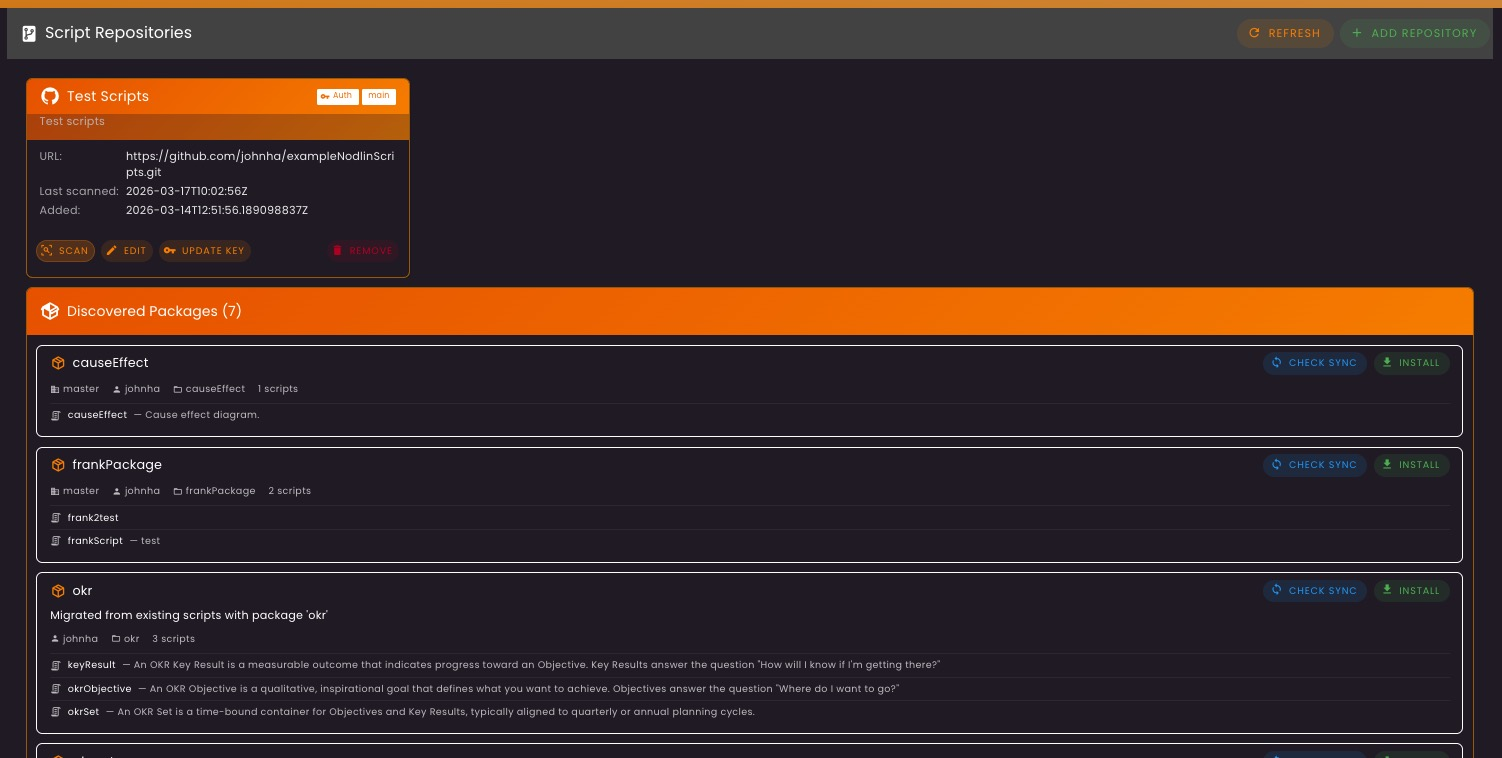
From here you can Install a package to import its scripts into your Nodlin domain, or Check Sync to verify whether your local copy matches the latest version on GitHub.
Private Repositories & GitHub PAT
If your script repository is private, Nodlin requires a GitHub Personal Access Token (PAT) to access it.
Creating a Fine-Grained PAT on GitHub
- Go to GitHub Settings → Developer settings → Personal access tokens → Fine-grained tokens.
- Click Generate new token.
- Give the token a descriptive name (e.g. “Nodlin script access”).
- Under Repository access, select Only select repositories and choose the repository containing your scripts.
- Under Permissions → Repository permissions, grant Contents: Read-only access. No other permissions are required.
- Click Generate token and copy the token value.
Configuring the Token in Nodlin
On the Script Repositories panel, find your repository card and click Update Key. Paste the token and save. The Auth badge on the repository card confirms that a token is configured.
Publishing a Package
To publish a local package to a GitHub repository:
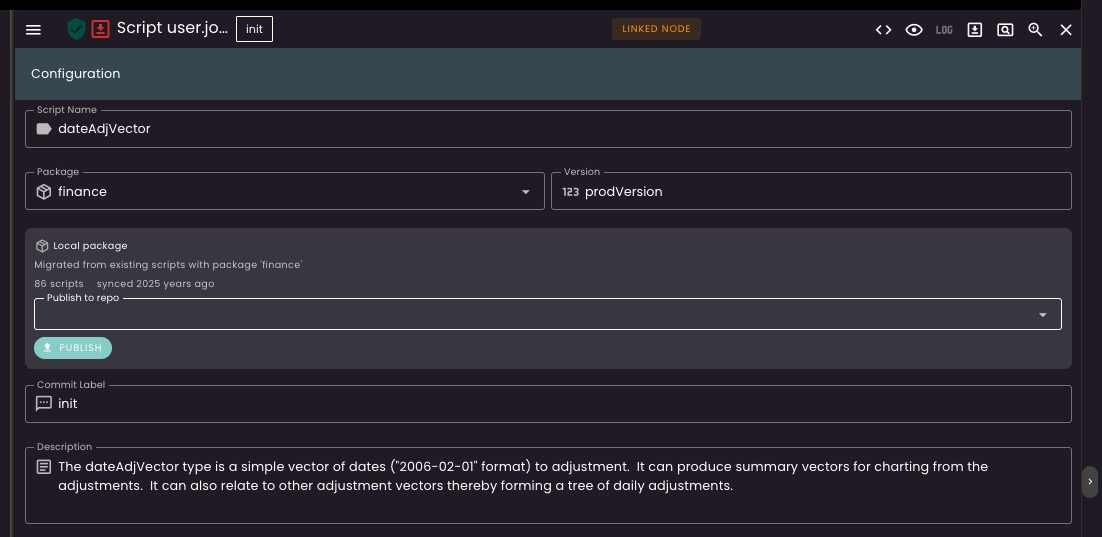
- Open the script in the Script Panel and navigate to the Configuration tab.
- Select a target repository from the Publish to repo dropdown.
- Click Publish.
Nodlin will commit the package’s nodlinpackage.json manifest and all .star script files to the
selected repository. The commit label shown in the configuration panel is used as the commit message.
After publishing, other Nodlin users who have the same repository configured can scan and install your package.
Script Maintenance & Cleanup
Over time, script version chains accumulate old versions that are no longer referenced by any node. Nodlin provides automatic cleanup to keep the system tidy.
How Cleanup Works
The maintenance server periodically scans for script versions that:
- Have no nodes referencing them (node count = 0).
- Are older than the configured age threshold.
These scripts are removed regardless of their position in the version chain (head, middle, or tail). The version chain is automatically re-linked — if a mid-chain script is removed, its predecessor is pointed directly to its successor, preserving the chain integrity.
Configuration
From the admin panel Script Cleanup section, you can:
- Set the Script Cleanup Age (days) — scripts older than this with no node references will be removed. The default is 14 days.
- Click Save to persist the setting.
- Click Run Cleanup Now to trigger an immediate cleanup cycle.

Sharing Scripts Across Users
The combination of GitHub-hosted packages and FQN-based preferences creates a natural mechanism for sharing scripts across a Nodlin domain:
- Develop — a user creates and iterates on scripts locally in Nodlin.
- Package — related scripts are grouped into a package with a
nodlinpackage.jsonmanifest. - Publish — the package is published to a shared GitHub repository.
- Install — other users in the domain add the same repository and install the package.
- Prefer — users (or an admin for all users) set the installed script as their preference.
- Update — when the author publishes a new version, users can check sync and re-install to get the latest scripts. New nodes will automatically use the updated version via the FQN preference.
This workflow allows teams to maintain a shared library of scripts — standard node types, business processes, and analytical models — while still permitting individual users to experiment with their own variations without affecting others.
